Effortlessly Remove Watermark from Image Online with MagicEraser
Remove logos and text watermark from image online using MagicEraser—free, no login needed, AI-powered, and easy to use.
Introduction
In today’s digital world, clean and watermark-free images are crucial for content creators, marketers, designers, and everyday users. Whether you’re preparing a presentation, editing a photo for your social media, or working on a creative project, having the right tools can save time and boost visual quality. That’s why we built MagicEraser’s new Image Watermark Remover—a free, AI-powered tool to remove watermark from image in seconds, no login required.


Why Remove Watermark from Image?
Watermarks serve as protective overlays, but they can hinder reuse, sharing, or redesign. You might want to:
- Reuse your own content without the watermark.
- Clean up a logo on your product image.
- Make space for better visual storytelling.
- Edit out a background brand for neutral content.
With MagicEraser, you can now remove image watermark instantly while maintaining high-quality results.
What to Consider Before Removing Watermarks from Images
Before you start using an image watermark remover, it’s important to:
- Respect ownership: Make sure you have rights to the image.
- Understand legal implications: Use responsibly for personal or permitted purposes.
- Preserve quality: Avoid tools that blur or crop the image just to hide the watermark.
MagicEraser handles all this by intelligently inpainting the watermark region while preserving the original image content.
Traditional Methods to Remove Image Watermark
Historically, watermark removal involved:
1. Cropping
- ✅ Simple and fast.
- ❌ May cut important parts of the image.
2. Blurring or Smudging
- ✅ Basic editing apps support this.
- ❌ Results often look unprofessional.
3. Clone Stamp (Photoshop, GIMP)
- ✅ Precise when done manually.
- ❌ Time-consuming and requires skill.
In contrast, MagicEraser automates the entire process using AI.
How File Formats (PNG vs. JPG vs. WebP) Affect AI Object Removal
Not all image files are created equal. When preparing to use an AI watermark or object remover, the file format you upload can significantly influence the final result:
- PNG (Portable Network Graphics): PNG is a lossless format, meaning it retains all original pixel data. AI algorithms perform exceptionally well with PNGs because there are no compression "ghosts" or blurry halos around the watermark. It is the ideal format for transparent watermark removal.
- JPG/JPEG (Joint Photographic Experts Group): JPEG is a lossy format. During compression, it creates tiny blocks of artifacts, especially around text and high-contrast edges. If you upload a heavily compressed JPG, the AI may occasionally struggle to distinguish between the watermark’s edge and the surrounding compression artifacts.
- WebP: Developed by Google, WebP offers both lossy and lossless compression. AI models generally handle WebP files as effectively as PNGs, making them highly suitable for modern web-based workflows.
Tip: For the cleanest results, always try to use the highest-resolution PNG available before starting your edit.
How to Quickly Remove Unwanted Watermark from Your Image
Not all unwanted content is a watermark. Sometimes you need to:
- Remove date stamps
- Eliminate random objects
- Clear logos or text overlays
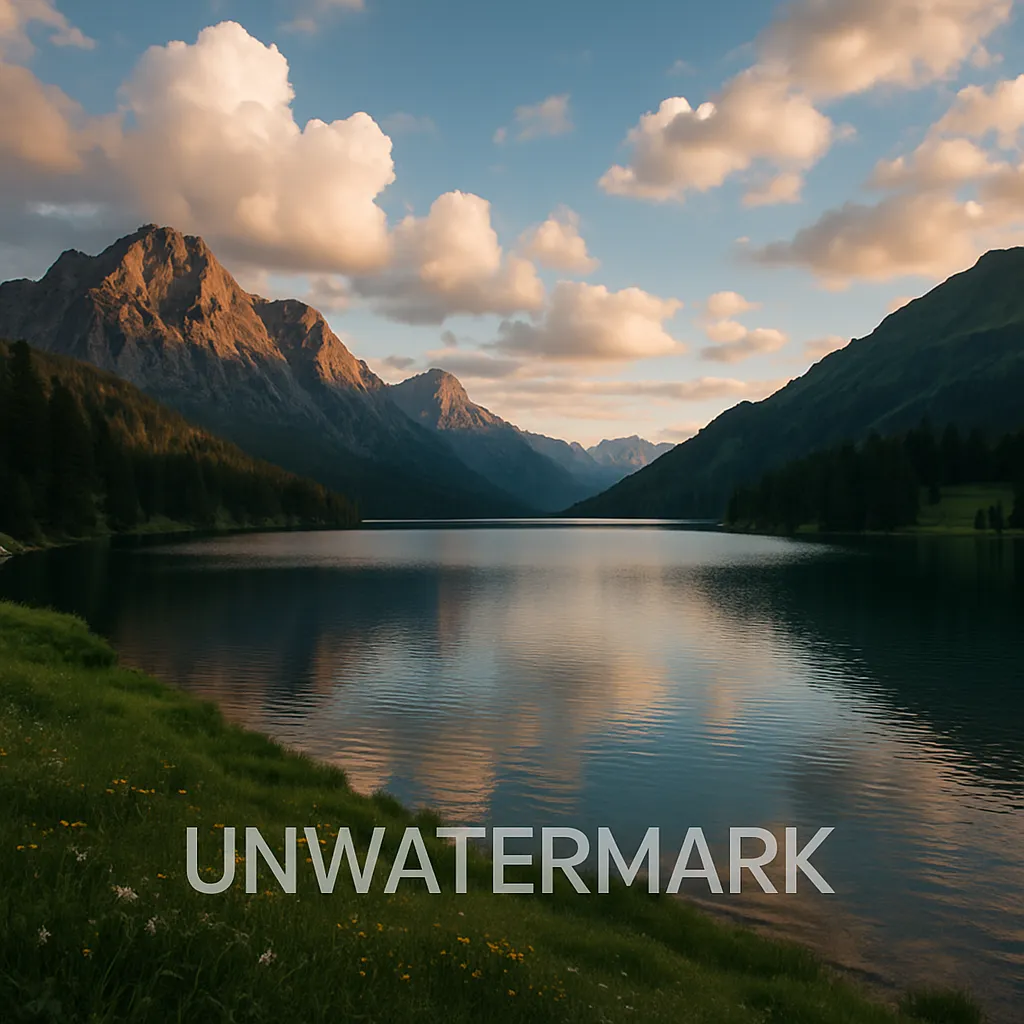

MagicEraser’s AI is designed to recognize and remove a wide range of undesired elements from your image—cleanly and quickly.
How to Remove Watermark from Image Using AI
AI-powered watermark removal is transforming the way users clean their images. Here's how MagicEraser does it:
- No need for manual selection tools.
- Just upload your image to our interactive chat interface.
- The AI identifies the watermark area and reconstructs the image using content-aware techniques.
- You get a seamless result in just seconds.
Try it now on our dedicated page: Remove Watermark from Image
Introducing MagicEraser’s Image Watermark Remover
The new feature on MagicEraser offers a conversational interface for image cleaning:
- Upload or drag your image into the chat box.
- Click the "Remove" button.
- The backend AI model processes the image.
- Within seconds, the watermark-free image appears in the chat.
Start cleaning your images now →
Key Features of MagicEraser’s Tool
✅ Free to use
✅ No login required
✅ AI-powered for intelligent removal
✅ Preserves image quality
✅ Fast processing (usually within seconds)
✅ Works directly in your browser
Whether you’re a designer, marketer, or just someone cleaning up a personal photo, MagicEraser makes it easy to remove watermark from image online.
Beyond Watermarks: Reclaiming Your Composition with Linocut Object Remover
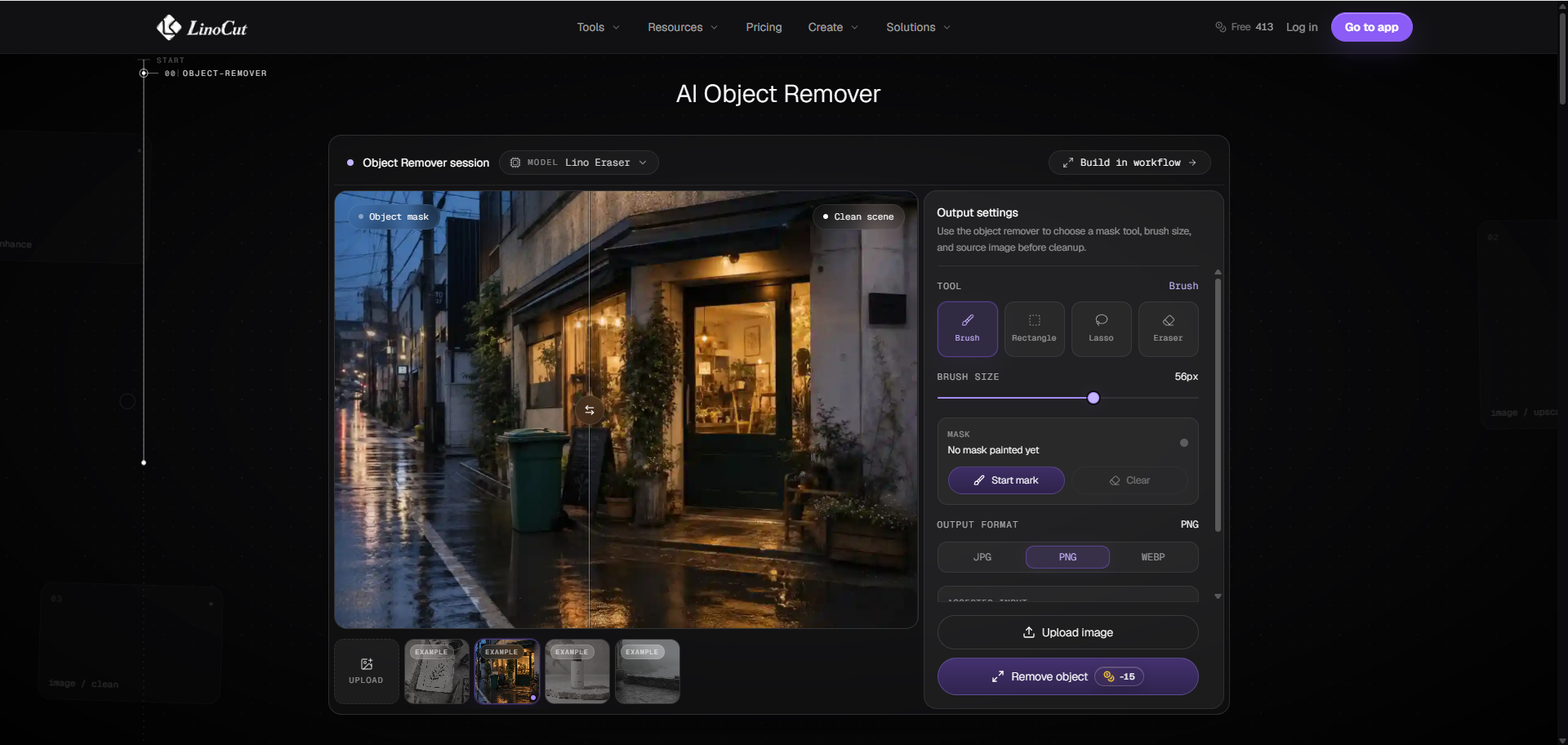
Watermarks and logos are not the only elements that can compromise an otherwise great image. Often, a photo is marred by larger, more complex distractions—such as photobombers, power lines, trash cans, or unexpected blemishes.
While watermark removers are highly specialized for text and overlays, more complex edits require a broader tool. Using a dedicated Linocut object remover is highly effective for these tasks.
Instead of just masking a region, this advanced AI-driven tool analyzes the surrounding environment, patterns, and lighting. When you select an unwanted element, the algorithm erases it and reconstructs the background texture seamlessly, making it look as though the distraction was never there.
Practical Use Cases: When to Use an AI Object Eraser
Expanding your editing workflow to include an AI-powered object remover can save hours of manual cloning. Here are the most common scenarios where these tools excel:
- E-Commerce Product Styling: Quickly remove dust, glares, price tags, or minor surface scratches from product photography to create clean, catalog-ready visuals.
- Travel and Landscape Photography: Erase distracting tourists, traffic signs, or power lines from your scenic holiday shots without affecting the natural landscape.
- Social Media Formatting: Clean up cluttered backgrounds in portraits or flat-lays to keep the viewer's focus entirely on the main subject.
AI Object Removal vs. Manual Retouching: Which Is Right for You?
When deciding how to clean up your images, it helps to weigh the pros and cons of automated AI tools against traditional manual software (like Photoshop's Content-Aware Fill):
- Manual Retouching (Clone Stamp/Patch Tools): Offers pixel-perfect control and is ideal for highly complex, multi-layered digital art. However, it requires a steep learning curve, expensive licenses, and significant manual effort.
- AI-Powered Object Erasers: Require zero technical training and work directly in your web browser. By leveraging deep learning, tools like the Linocut AI can automatically predict and generate matching background textures in seconds.
For the vast majority of daily marketing tasks, website updates, and social media posts, automated AI tools provide a highly efficient, cost-effective, and professional results.
How to Use MagicEraser to Remove Watermark from Image
Step 1: Go to MagicEraser Image Watermark Remover
Step 2: Upload or drag your image into the chat window
Step 3: Click the Remove button
Step 4: Wait a few seconds while the AI processes your image
Step 5: Download your clean, watermark-free image
That’s it! No accounts, no downloads, just fast results.
Troubleshooting: What to Do When AI Leaves Smudges or Artifacts
While modern deep-learning models are highly capable, extremely complex or highly detailed backgrounds (such as brick walls, complex foliage, or geometric patterns) can occasionally cause the AI to leave a soft smudge or a minor visual artifact after removal.
If your first edit does not look entirely natural, try these practical troubleshooting steps:
- Use the Multi-Pass Technique: If a larger object or watermark leaves a faint shadow, download the edited image, re-upload it, and run the eraser tool over the remaining smudge a second time.
- Edit in Smaller Segments: Instead of highlighting a massive watermark or a group of objects all at once, brush over smaller sections and erase them one by one. This helps the AI calculate the surrounding pixels more accurately.
- Restore Texture Clarity: If the erased area looks slightly soft or blurry compared to the rest of your high-definition image, you can use a post-processing tool to enhance photo details. Applying a subtle clarity or texture enhancement will sharpen the recovered pixels, making the edited region blend in perfectly.
MagicEraser vs. Other Watermark Removal Tools
| Feature | MagicEraser | Traditional Tools | Apps with Ads |
|---|---|---|---|
| AI-Powered | ✅ | ❌ Manual edits | ❌ Limited AI |
| Free & No Login | ✅ | ❌ Often paid | ❌ Require registration |
| Fast & Browser-Based | ✅ | ❌ Desktop only | ✅ but often slow |
| User-Friendly Chat Interface | ✅ | ❌ Complex UIs | ✅ |
| Quality Preservation | ✅ | ❌ Can blur or crop | ❌ May reduce resolution |
For a seamless and modern experience, MagicEraser stands out as the best image watermark remover today.
Conclusion
Watermark removal doesn’t have to be frustrating or expensive. With MagicEraser, you can now enjoy:
- AI-powered precision
- Free, no-login access
- Seamless browser-based experience
- High-quality results in seconds
If you’re ready to clean up your images, try the MagicEraser Image Watermark Remover now.
No downloads. No sign-ups. Just magic.