CONTACT US
Let's talk about your problem.
Our Location
29 Mayflower Gardens, 31
Mayflower Place, Singapore 568894
How Can We Help?
Send us a Message
Please contact us directly by email.
AI Image Text Remover
Brush over captions, labels, date stamps, or other unwanted writing. MagicEraser removes the selected text and rebuilds the area using the surrounding image.
Use the adjustable brush to mark a caption, label, date stamp, handwriting, or text overlay without selecting the entire image.
MagicEraser analyzes nearby colors, lighting, and textures to reconstruct the selected area instead of covering it with a blurred block.
Review the cleaned area, check edges and detailed textures, and repeat the selection when a complex background needs another pass.
Targeted editing limits changes to the area you brush, helping the surrounding composition and details stay consistent.
Upload an image, remove unwanted text, and download the result without installing desktop editing software.
Save the finished image as a PNG and continue using it in presentations, product listings, social posts, or personal projects.
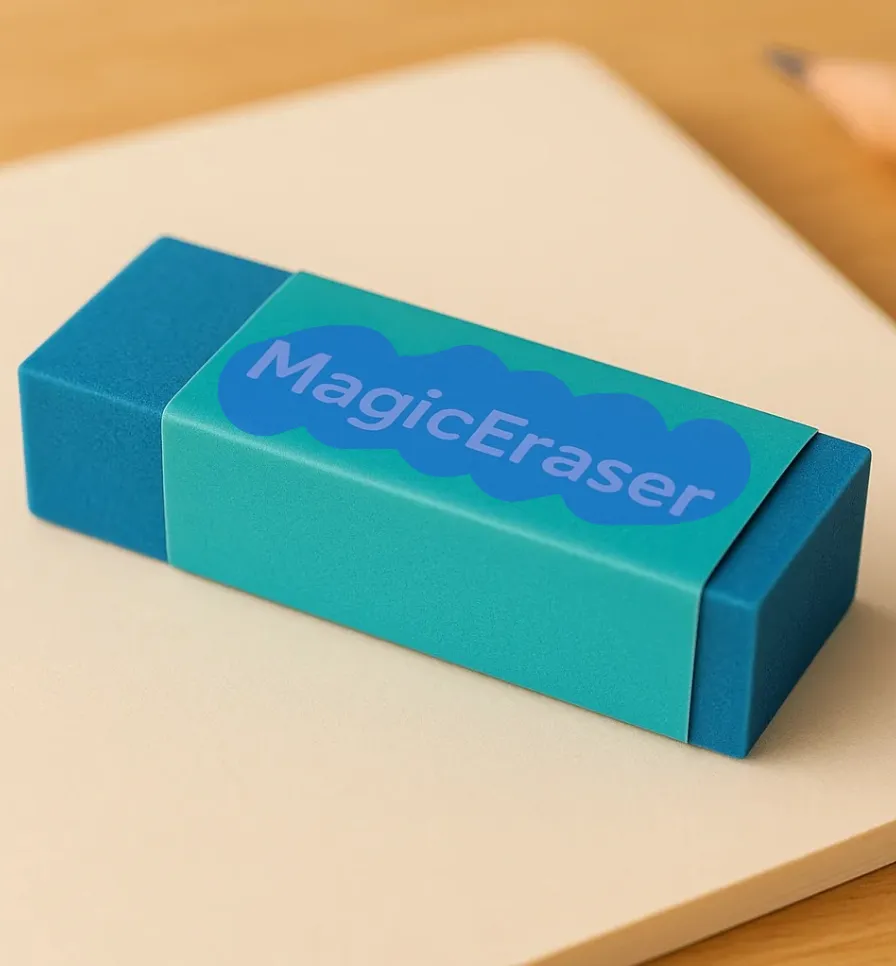
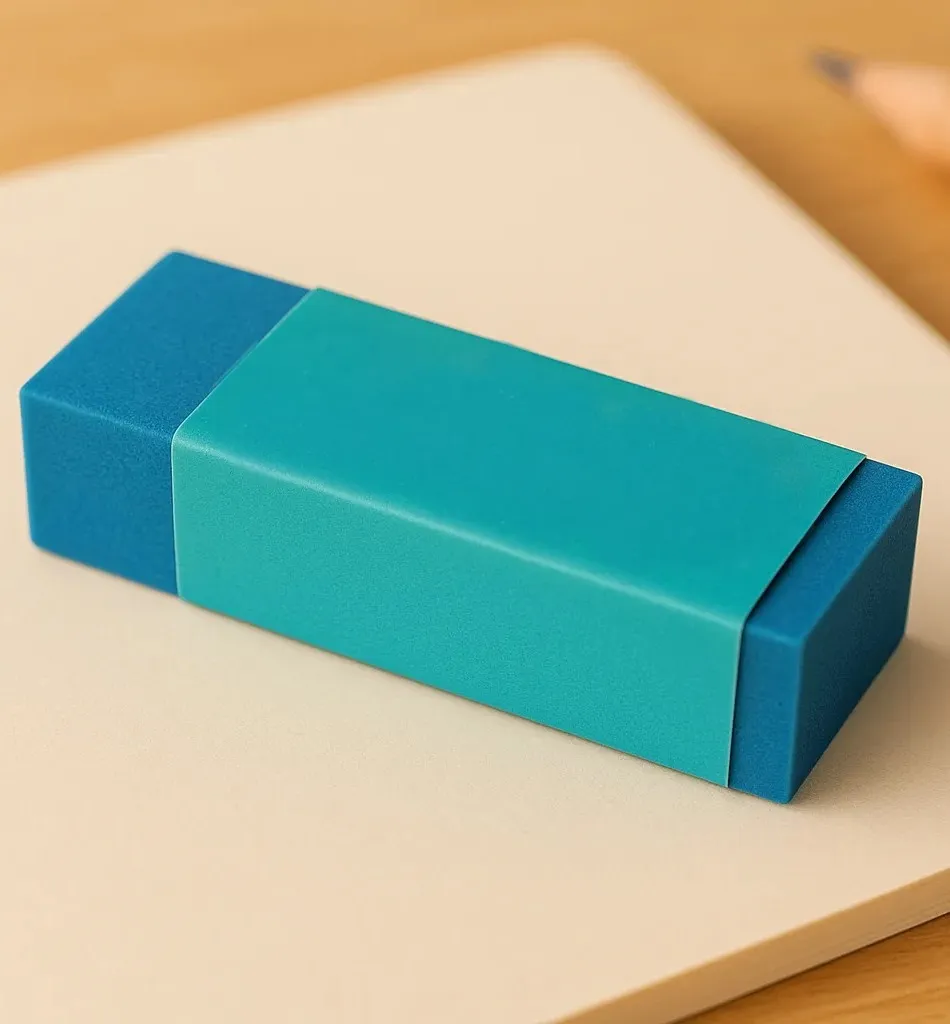
Clear burned-in captions from screenshots, memes, social graphics, and video stills when you need a reusable visual.
Remove old prices, sale messages, product labels, and temporary campaign text from images you are allowed to edit.
Clean camera timestamps, scanned notes, signatures, or handwritten marks while preserving the surrounding photo.
You can remove text watermarks from images you own or have permission to edit. Always respect copyright and usage rights.
Clean up screenshots, memes, story graphics, and reused campaign visuals by removing captions or outdated overlay text. Brush only the words you want gone, then review how the reconstructed area blends with the original colors and textures. This focused workflow helps creators prepare a cleaner background before adding new copy or adapting the visual for another platform.


Remove temporary price tags, supplier labels, outdated promotion text, or proof notes from product photos you own or are authorized to edit. MagicEraser lets you target the writing while keeping the product and surrounding setup in view. For text that crosses packaging edges or detailed materials, use a smaller brush and inspect the result before publishing the listing or campaign image.
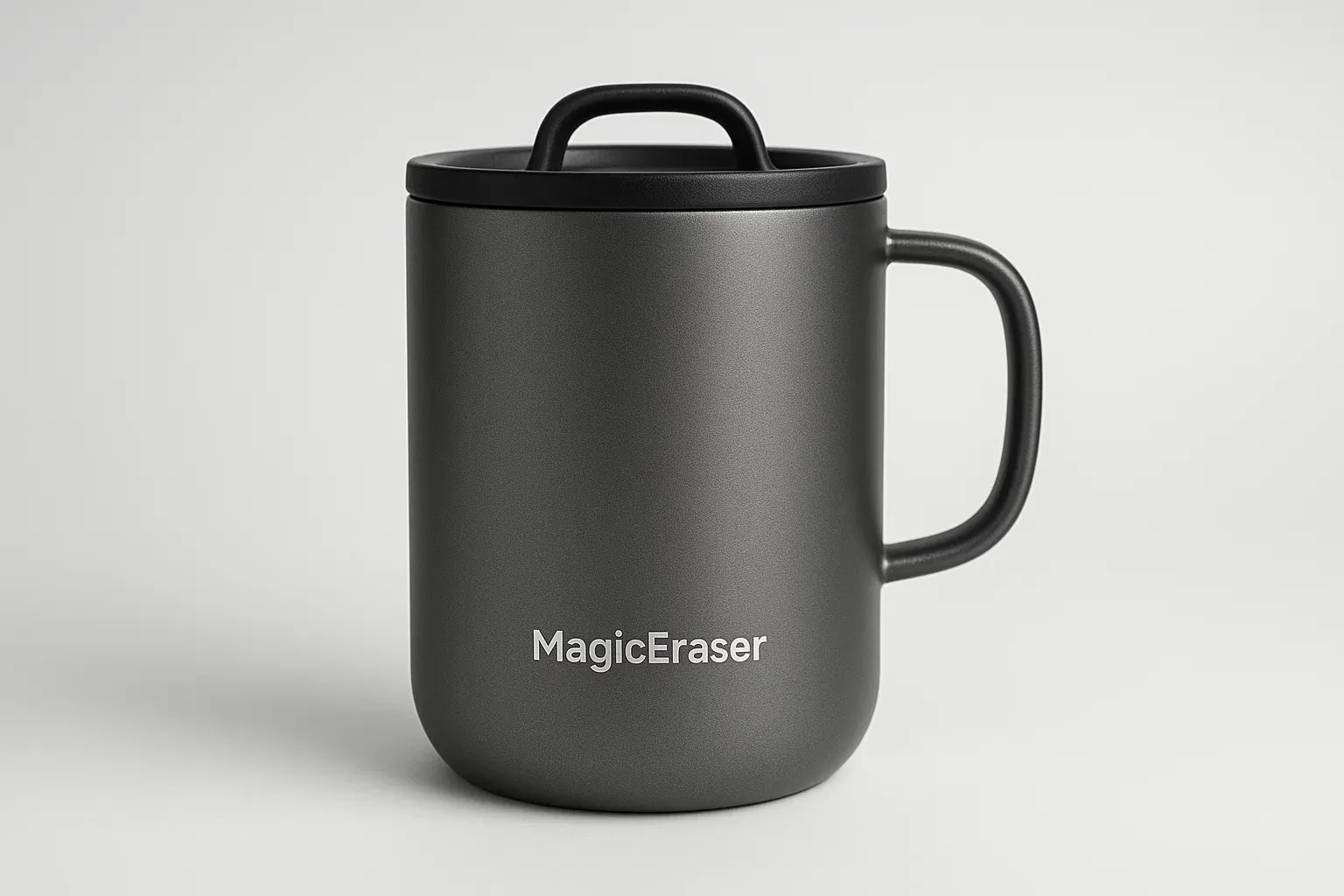
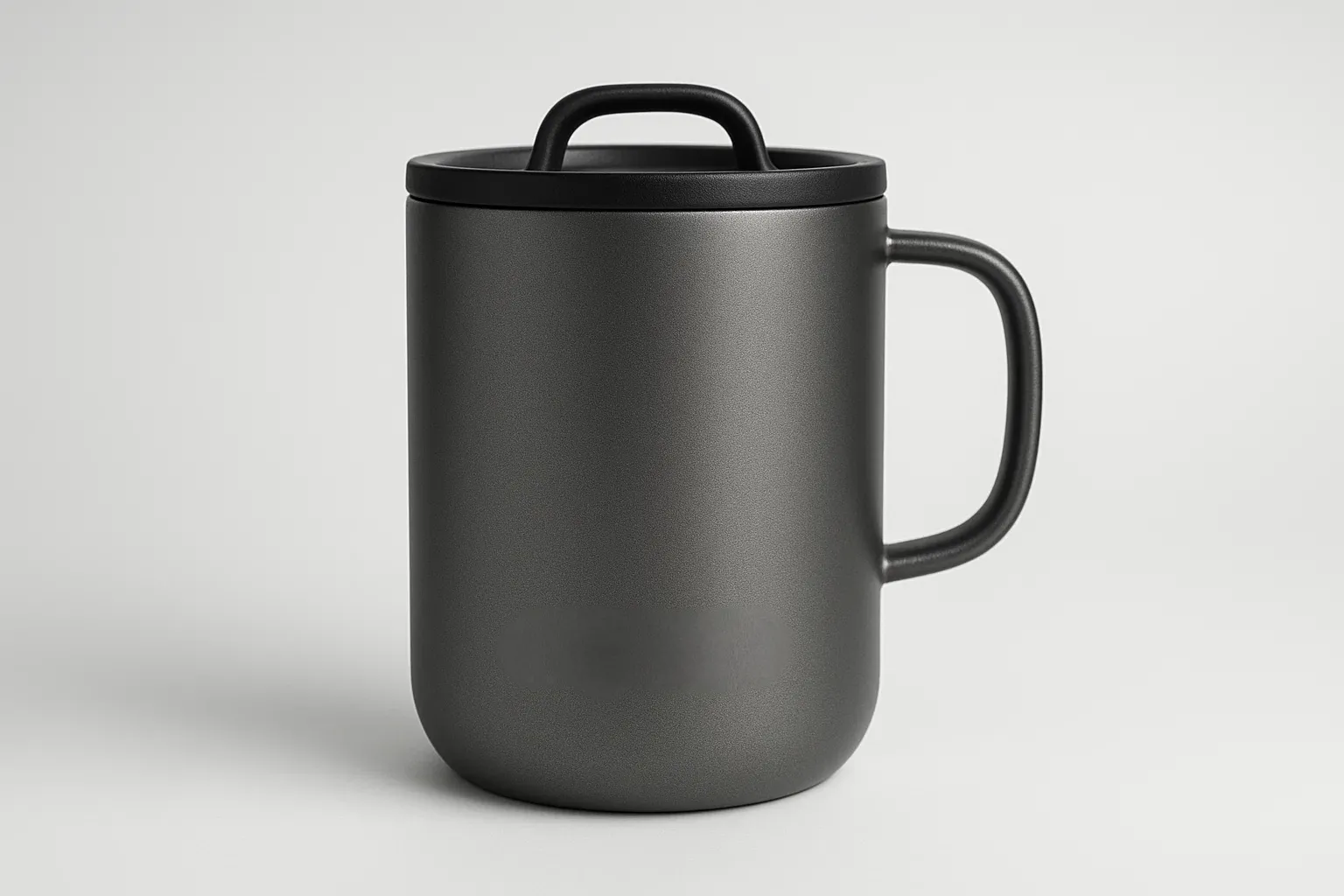
Use MagicEraser to clear camera dates, handwritten notes, or other distracting marks from personal photos and scans. A clear, high-resolution source gives the AI more surrounding detail to work with. Simple backgrounds often need one pass. Fine patterns, faces, or text that covers important objects may benefit from a smaller selection and another review.
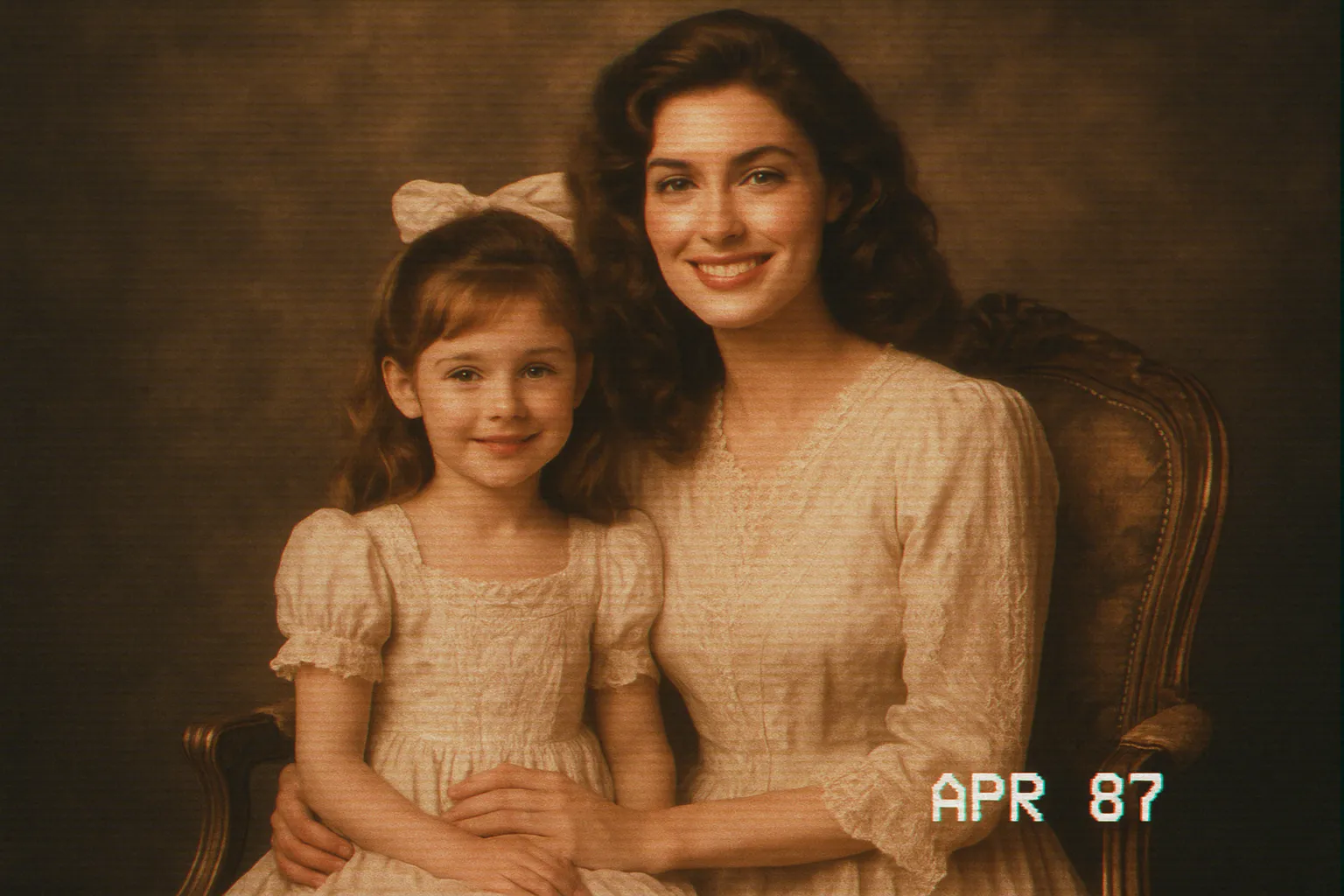
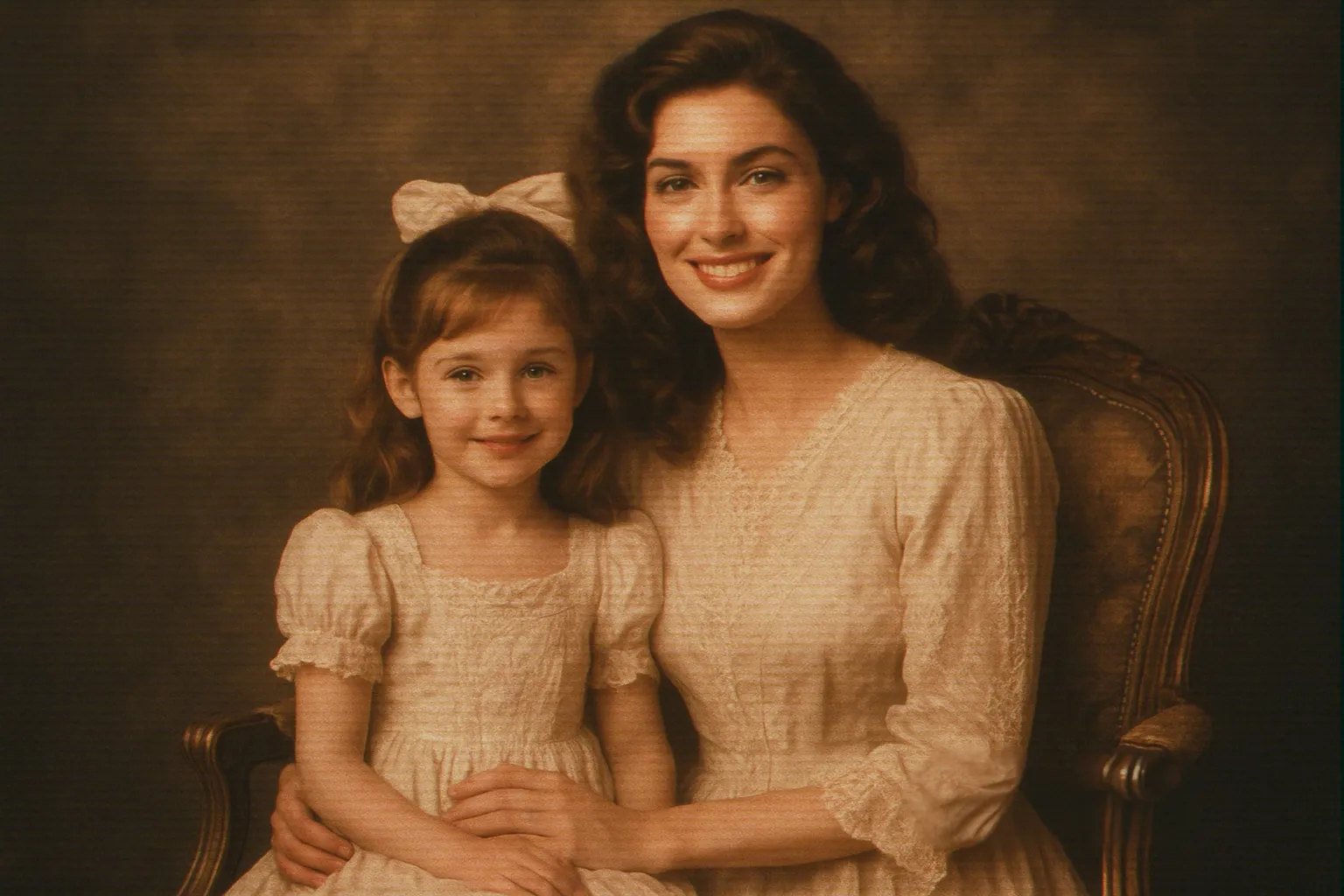
MagicEraser edits visible pixels inside the area you select. Understanding where this approach works best makes it easier to choose the right image and review the result with realistic expectations.
| Situation | Best for | What to expect |
|---|---|---|
| Visible text overlays | Captions, date stamps, labels, short notes, and similar writing over open or consistent backgrounds. | Usually the most straightforward case; select the complete lettering and review the reconstructed area. |
| Text over detailed areas | Words crossing a face, object edge, fine pattern, reflection, fabric, or transparent surface. | May need a tighter mask, smaller sections, or more than one attempt to keep nearby details consistent. |
| Finished images and authorized edits | Cleaning visible pixels in an image you own or have permission to modify. | Does not extract words, identify fonts, create editable text layers, or transfer copyright and usage rights. |
Review every result before publishing, especially when text overlaps important subjects or protected ownership marks.
A careful selection gives the AI more useful context and helps the repaired area blend with the rest of the image. These practical steps are especially helpful when text sits near an object edge or over a detailed background.

CONTACT US
Let's talk about your problem.
Our Location
29 Mayflower Gardens, 31
Mayflower Place, Singapore 568894
How Can We Help?
Send us a Message
Please contact us directly by email.